1. Install Node.js / npm
2. Install connect module using npm:

3. Create static file server (server.js)
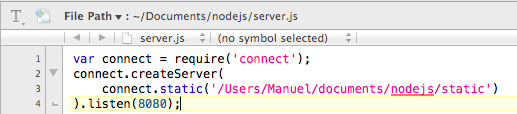
4. Create html index.html File in directory:
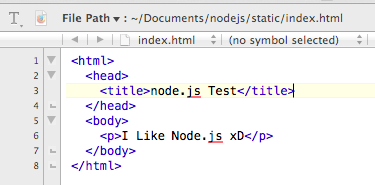
5. Start the server:

6. Test Server:

Source
https://github.com/woppr/nodejs.git
1. Install Node.js / npm
2. Install connect module using npm:
3. Create static file server (server.js)
4. Create html index.html File in directory:
5. Start the server:
6. Test Server:
Source
https://github.com/woppr/nodejs.git
Example how to access HTML elements in Java.
HTML Code
http://woppr.de/html
<html> <head> <title>My HTML page</title> </head> <body> <div id="1"> <h1>Inhalt div 1</h1> </div> <div id="2"> <h1>Inhalt div 2</h1> </div> </body> </html> |
Eclipse

Code

Source
http://jsoup.org/cookbook/extracting-data/dom-navigation
Source Code (git)
Folgendes Beispiel zeigt wie Log4j zum Logging in Java verwendet werden kann.
Achtung: Es wird Version 1.2.xx von Log4j benötigt. Version 2.0 funktioniert nicht!
Zunächst muss Log4j (1.2.17.jar) im Build Path hinzugefügt werden:
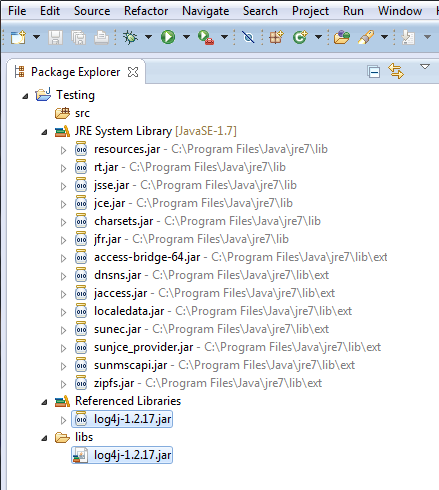
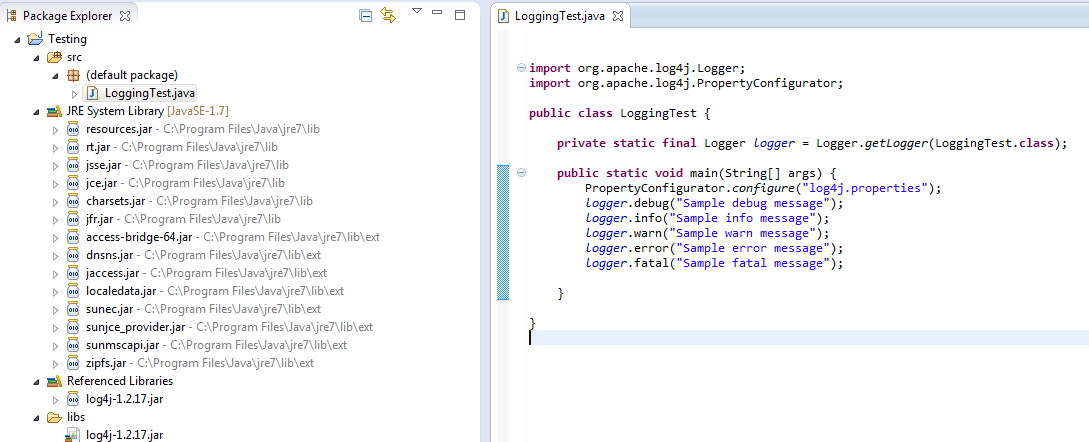
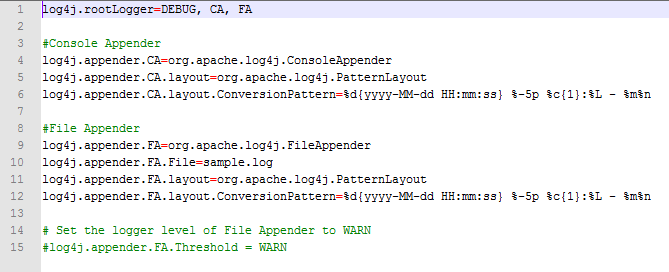
Zur Konfiguration wird ein Konfigurationsfile verwendet (log4j.properties).
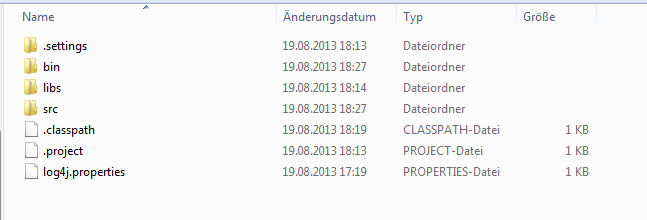
Das Konfigurationsfile (log4j.properties) im Root Verzeichnis des Projektes ablegen:
Beispiel Konfigurationsfile (log4j.properties):
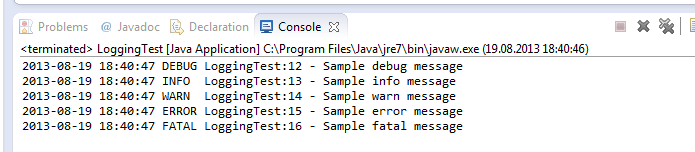
Anhand der Einstellungen im .properties Files wird in der Console folgende Ausgabe erzeugt:
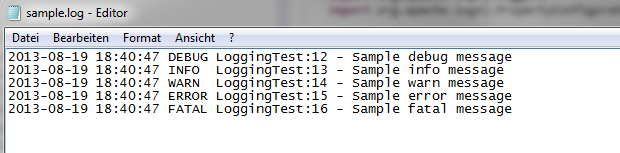
Im Root Verzeichnis des Projektes wird die Datei sample.log mit denselben Einträgen erzeugt:
Sourcecode:
Example implementation how to use google OpenID for a login to a Website.
http://woppr.de/openid/google.php
Prerequisite:
LightOpenID PHP 5 library for openid authentication (openid.php)
Google, completely ignores optional parameters, and for the required ones, it supports, according to it’s website:
Code:
<?php # Logging in with Google accounts requires setting special identity, so this example shows how to do it. require 'openid.php'; try { $openid = new LightOpenID('woppr.de'); if(!$openid->mode) { if(isset($_GET['login'])) { $openid->identity = 'https://www.google.com/accounts/o8/id'; $openid->required = array('namePerson/first', 'namePerson/last', 'contact/email'); header('Location: ' . $openid->authUrl()); } ?> <form action="?login" method="post"> <button>Login with Google</button> </form> <?php } elseif($openid->mode == 'cancel') { echo 'User has canceled authentication!'; } else { if($openid->validate()) { $returnVariables = $openid->getAttributes(); echo 'User ' . $openid->identity . ' has logged in with this email address ' . $returnVariables['contact/email'] . ' Name: ' . $returnVariables['namePerson/first'] . ' ' . $returnVariables['namePerson/last']; } else { echo 'User has not logged in.'; } } } catch(ErrorException $e) { echo $e->getMessage(); } |

| ShortCut | Aktion |
|---|---|
| Cmd + Shift + 3 | Speichert gesamten Bildschirm als Datei. |
| Cmd + Ctrl + Shift + 3 | Speichert gesamten Bildschirm in der Zwischenablage. |
| Cmd + Shift + 4 | Speichert einen ausgewählten Bereich als Datei. |
| Cmd + Ctrl + Shift + 4 | Speichert einen ausgewählten Bereich in der Zwischenablage. |
| Cmd + Shift + 4, danach Leertaste | Speichert ein gewähltes Element/Fenster als Datei. |
| Cmd + Ctrl + Shift + 4, danach Leertaste | Speichert ein gewähltes Element/Fenster in der Zwischenablage. |
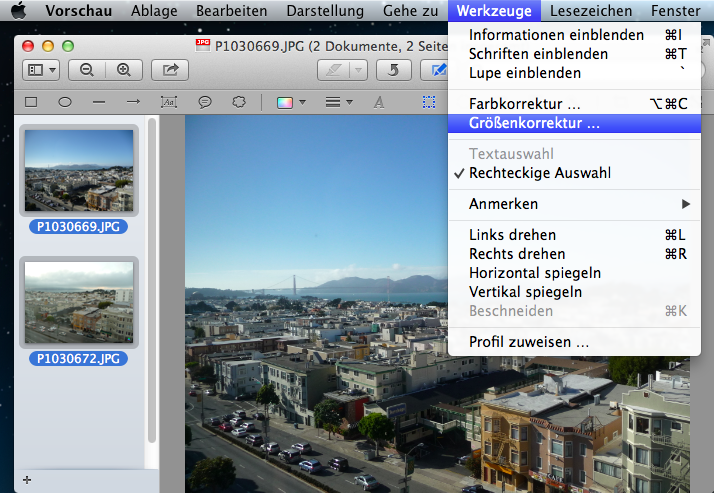
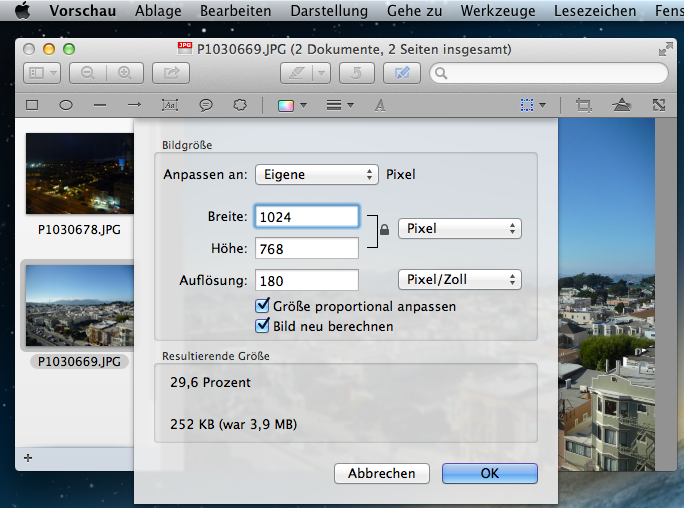
Hier eine kurze Anleitung wie Bilder mit dem Mac verkleinert werden können. Es wird hierzu kein zusätzliches Programm benötigt, sondern lediglich das Programm Vorschau (Preview), das mit Mac OS X ausgeliefert wird.
1. Zunächst das Programm Vorschau über /Programme/Vorschau starten oder ein Bild mit Vorschau öffnen.
2. Über die Miniaturansicht können auch mehrere Bilder ausgewählt werden.
3. Über Werkzeuge –> Größenkorrektur die Größe der Bilder auf die gewünschte Größe ändern.
DATA: r_values TYPE RANGE OF ztest123-value, r_values_line LIKE LINE OF r_values. r_values_line-SIGN = 'I'. "I = include, E = exclude r_values_line-OPTION = 'EQ'. "EQ, BT, NE .... r_values_line-LOW = '123'. r_values_line-HIGH = '124'. append r_values_line to r_values. |
REPORT ztest123_codeforuser. IF sy-uname = 'USER123'. WRITE: / 'Code for specific user !!! '. ENDIF. |
REPORT zmstest_divide_zero_exc. START-OF-SELECTION. DATA : num TYPE i VALUE 5 . TRY. num = num / 0 . CATCH cx_sy_zerodivide . WRITE:/5 'Division by 0 caught' . ENDTRY. |